
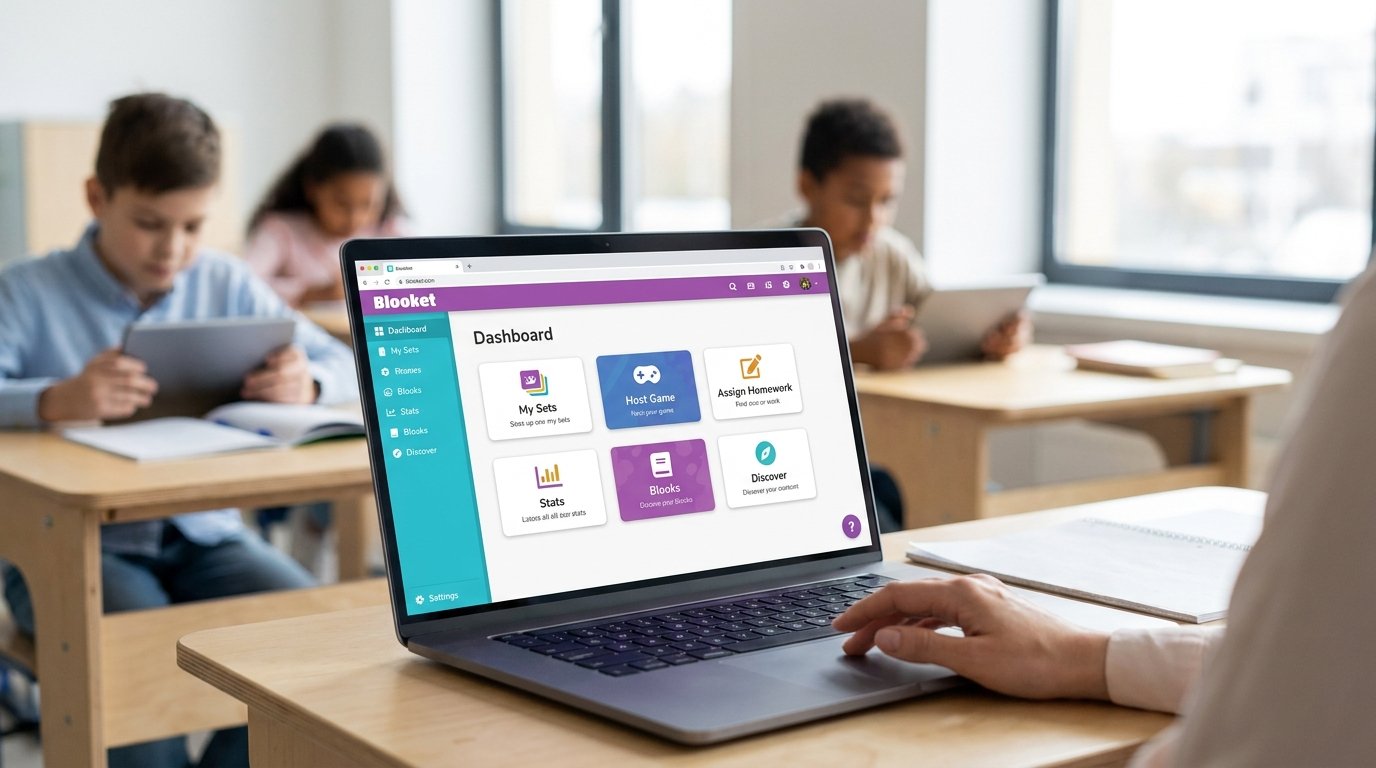
If you have ever signed in to Blooket and wondered where everything is, you are not alone. The Blooket dashboard is the home screen of your account, and it brings together the tools you need to build question sets, start games, give homework, check results, and collect rewards. Once you understand how its parts fit together, running a class review or a study session becomes much faster and far less confusing.
This guide explains what the dashboard is, how to open it, what each area does, and how teachers and students can get the most from it. It also covers the difference between the free Starter account and Blooket Plus, so you can decide whether an upgrade makes sense for you.
What Is the Blooket Dashboard?
Blooket is a game-based learning platform where students answer questions inside different kinds of games instead of taking a plain quiz. The dashboard is the place you land after you log in, and it works as a control center for your whole account. Teachers use it to manage their question sets, host live games, assign homework, and look at student results. Students use it to join games, check their stats, finish assigned homework, and spend the tokens they earn.
The layout can change a little when Blooket updates its design, so you may see slightly different names or button positions from one year to the next. The main ideas, however, stay the same: your content lives in one place, your results live in another, and your rewards have their own section.
How to Open Your Blooket Dashboard
The simplest way to reach the dashboard is to go to the Blooket website, choose the login option, and sign in. After you sign in, Blooket takes you to the dashboard automatically. Blooket also lists dashboard.blooket.com as the address of the account area, so you can type it into your browser if you prefer to go there directly while you are already logged in.
You can sign in with an email and password or with a connected account such as Google. If you use a connected account, always choose the same method each time, because Blooket may treat different sign-in methods as separate paths into your account. If you forget your password, use the reset option on the login page rather than creating a new account, since a new account would not contain your saved sets or progress.
It is also worth knowing the difference between logging in and joining a game. Students do not need to open the dashboard to join a live game. They can go to the Blooket play page, type the game code shown by the host, and enter a nickname. The dashboard is for managing your account, while the join page is only for entering a game that is already running.
The Main Areas of the Blooket Dashboard
My Sets and Favorites
A question set is a collection of questions that can be used in many different games. The My Sets area shows every set you have created, and you can open one to edit it, host it, or play it. The Favorites area keeps the sets you have saved from Discover so you can find them again without searching.
Free accounts can create and discover sets. Blooket Plus adds folders for organizing your sets and favorites, which becomes useful once your library grows into dozens of sets. Plus also lets you merge two of your own sets with a few clicks, copy and duplicate sets so you can edit your own version, and quickly add questions from any set to your own through a question bank.
Discover
Discover is the public library of question sets made by other users. You can search by topic, subject, or keyword, and then play a set on your own, host it for a class, or save it to your favorites. This is a big time saver for busy teachers, because a ready-made set on fractions, vocabulary, or history may already exist.
Because anyone can publish a set, it is wise to read through the questions before using one in class. Look for spelling errors, outdated facts, and wrong answers. Plus users also have access to verified curriculum sets created by experts, which can reduce the amount of checking you need to do.
Homework
Homework lets you assign a game to students so they can finish it on their own time instead of during a live session. You choose a set, pick a game mode that supports homework, and set a due date. Students then complete the activity before the deadline, and their results flow into your reports as they finish.
On the free Starter plan, you can set homework deadlines up to 14 days away. Plus extends this to as long as 365 days, which is helpful for long projects or review that stretches across a whole term. Once homework is assigned, you can return to the Homework area to reopen it, change the due date, delete it, or look at the results.
History, Stats, and Reports
After a game ends, Blooket creates a report so you can see how the class performed. You can find past results in your game history, and you can open a report right after a live game from the host screen. Students have their own stats area where they can look back at their past scores.
The free plan gives you basic results, such as an overall view of the game and a leaderboard. Reports for both live games and homework can be sorted by question or by the percentage of incorrect answers, which makes it easy to spot the questions that confused the most students. That single habit, checking the hardest question first, can give you a quick reteaching plan for the next lesson.
Blooket Plus unlocks enhanced reports. These include question-by-question data, details about the specific answers students chose, and individual student breakdowns. Plus users can also download reports as spreadsheet files. A full report download contains two tabs: an overview of every question with its accuracy and average answering time, and a participant summary that shows how each student performed. Individual student reports can be downloaded as well, with a column for every attempt.

Market and Blooks
The Market is the rewards side of the dashboard. In Blooket, a Blook is the character a player uses in a game, and players earn tokens by playing. Those tokens can be spent in the Market to open boxes and unlock new Blooks, which gives students a reason to keep practicing. Each Blook has a rarity level, and rarer ones are harder to get.
It helps to remember that the Market and Discover are different things. Discover is for finding question sets, while the Market is for spending tokens on Blooks. Mixing them up is one of the most common beginner mistakes, so keep this in mind when you are looking for something.
News and Settings
The dashboard also includes a news area where Blooket shares updates, along with a settings area where you can manage your account details. It is a good idea to visit settings once after signing up so that your account information is correct, especially if you are a teacher who wants access to teacher tools.
How Teachers Can Use the Dashboard Step by Step
A normal teaching workflow on the dashboard is simple. First, create a set of your own or find a suitable one in Discover. Second, open the set and choose whether to host a live game or assign it as homework. Third, if you are hosting live, pick a game mode, adjust the host settings, and share the game code so students can join. Finally, open the report once the game is over and look for patterns in the results.
Choosing the right mode matters. Some modes reward speed, some reward strategy, and some are better for quiet practice, so it helps to match the mode to your goal. For a quick warm-up, a fast and simple mode works well. For deeper review, a mode with more decision-making can keep students interested for longer. If your class is very small or your students are spread out, homework is often easier than trying to run a live session at the same time.
Class size also affects your choice of plan. A free Starter account can host live games with up to 60 players, while Plus raises the limit to 300 players in modes that allow it. For a standard classroom, 60 is usually plenty. For grade-wide reviews, assemblies, or school events, the larger limit may be the reason to upgrade.
How Students Can Use the Dashboard
Students benefit from the dashboard even if they never host a game. They can check their stats to see how they have been doing, open any homework their teacher has assigned, and visit the Market to spend their tokens. They can also use Discover to find a set on a topic they want to practice and play it alone, which is a helpful way to study without waiting for a teacher.
A good habit for students is to look at their results after each game and notice which kinds of questions they miss most often. Games are fun, but the real value comes from turning those mistakes into a short list of topics to review.
Blooket Dashboard Free vs Plus
Blooket describes itself as completely free to use, and the free Starter plan covers the core experience: creating and discovering sets, playing unique game modes, searching for sets, and hosting live games for up to 60 players. Plus is an optional paid upgrade for people who want more control and more data.
Based on Blooket’s own list of Plus perks, the paid plan adds access to Plus-only game modes, folders, live games with up to 300 players, enhanced reports, a question bank, verified curriculum sets, copy and duplicate tools, audio questions, homework deadlines up to 365 days, set merging, and 10 extra tokens for students after every game. Blooket also offers group plans for schools and teams.
Whether Plus is worth it depends on how you teach. If you run occasional review games and are happy to read results on screen, the free plan is likely enough. If you rely on detailed data, need to organize a large library, want audio in your questions, or host very big sessions, Plus can save real time. Prices and billing choices change from time to time, so check the upgrade page inside your own account before you pay rather than relying on any figure you read online.
Common Dashboard Problems and Simple Fixes
If the dashboard will not load, start with the basics. Check your internet connection, refresh the page, and try a different browser or a private window. Clearing the saved data in your browser, or turning off extensions that block scripts, can also fix pages that load only halfway. If the problem only happens on a school device, the school network may be blocking part of the site, and your technology staff can help.
If you cannot sign in, make sure you are using the same method you used when you created the account, whether that was email or a connected account. Use the password reset option if you are unsure about your password. If a feature you expect is missing, remember that some tools, such as detailed reports and certain game modes, belong to Plus, and some teacher tools depend on your account type.
A Word of Caution About Hacks and “Free Plus” Offers
Many websites promise free Plus accounts, cheats, or hacks for Blooket. These are risky. They often ask for your password, push you to install unknown software, or collect personal details. Using cheats can also spoil the learning purpose of a game and may break your school’s rules. The safest approach is to use the free plan, take advantage of any official promotions that Blooket announces, and ask your school about group plans if you need Plus features for your staff.
Tips to Get More From Your Dashboard
Give your sets clear names that include the topic and grade level, so you can find them quickly later. Keep each set focused on one skill or unit rather than building one enormous set. Review the report after every game and write down the one or two questions that most students missed. Rotate between game modes so students do not get bored. Finally, test a new set yourself before using it in class, since a small mistake in an answer key can confuse a whole room.
Frequently Asked Questions
What is the Blooket dashboard?
It is the main screen of your Blooket account, where you manage question sets, host or assign games, view results, and access rewards such as Blooks.
Is the Blooket dashboard free?
Yes, the dashboard is available with a free account. Some features inside it, such as enhanced reports, folders, and larger live games, require Blooket Plus.
Can students see the dashboard?
Yes. Students have their own dashboard where they can open homework, check stats, play solo from Discover, and use the Market.
Where do I find homework results?
Open the Homework area, choose the assignment, and scroll to the overview. You can sort results by question or by incorrect percentage. Plus users can open more detail and download spreadsheets.
How many players can join a game?
A free account can host up to 60 players in a live game, and Plus can host up to 300 players in modes that allow it.
Can I download reports from the dashboard?
Spreadsheet downloads of game and homework reports are a Plus feature. Free accounts can still view basic reports on screen.
What is the difference between Discover and the Market?
Discover is the library of question sets. The Market is where players spend tokens to open boxes and unlock Blooks.
Final Thoughts
The Blooket dashboard looks busy at first, but it follows a clear logic. Sets are for content, hosting and homework are for delivery, reports and stats are for learning from results, and the Market is for rewards. Learn those four ideas and you can find almost anything in a few seconds. Whether you are a teacher planning tomorrow’s review or a student looking for a better way to practice, spending a few minutes exploring the dashboard will make every game that follows smoother and more useful.
Disclaimer
This article is for general information and education only. It is not affiliated with, endorsed by, or sponsored by Blooket. Features, plan limits, prices, and the look of the dashboard can change at any time, so please check Blooket’s official website and help center for the most current details before you make decisions or purchases. Blooket is a trademark of its respective owner.