
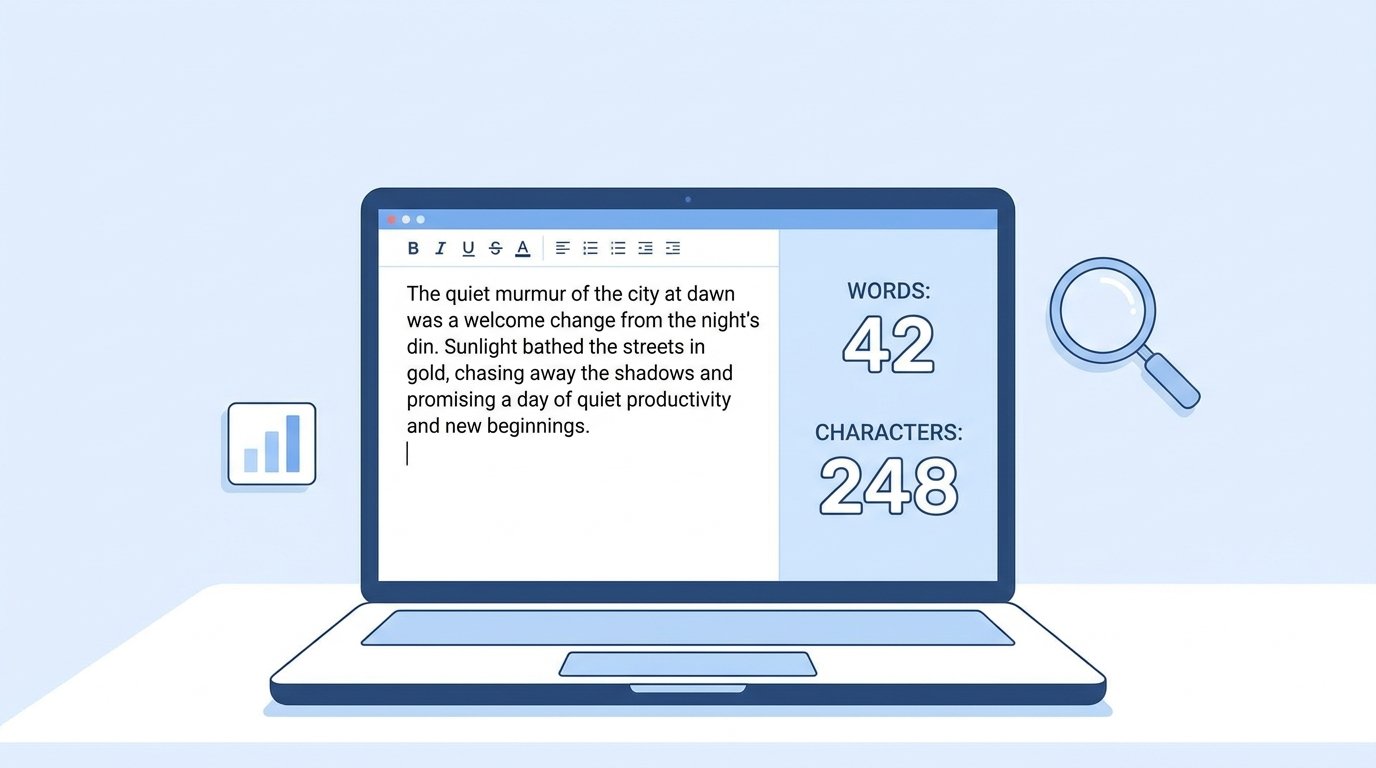
Checking the length of a piece of writing sounds like a small job, but it comes up all the time. A student needs to stay under an essay limit, a blogger wants to hit a target length, and a marketer wants to know which words appear too often in a draft. The uploadwords.com free word count tool is built for exactly these everyday needs. You paste your text or upload a file, and the tool shows your word count, character count, most repeated words, and a word cloud in a few seconds. This guide explains how the tool works, what it can and cannot do, and how to use it well, so you can decide whether it fits the way you write.
What Is Uploadwords.com?
Uploadwords.com is a free online text analysis tool. According to the information on the site, it needs no signup, no account, and no payment. You open the tool page, add your text, and press the analyze button. The site describes itself as a simple helper for students, writers, bloggers, and SEO marketers who want quick facts about a piece of text without opening a full word processor.
The main tool lives on its own page called the UploadWords tool, and the website also has a blog, a FAQ page, an about page, and the usual legal pages such as a privacy policy and terms. The blog covers topics around word counting, keyword research, and content creation, which makes the site useful as a small learning hub as well as a tool.
What the Free Word Count Tool Can Do
The core job of the tool is to count. It shows the total number of words and the total number of characters in whatever text you give it. Beyond that, it adds a few extras that many basic counters leave out.
The first extra is a top keywords table. This table lists the words that appear most often in your text, along with how many times each one appears. The second extra is a word cloud, which is a picture where frequent words appear larger and rare words appear smaller. The third extra is output control: you can copy your results or download the word cloud as a PNG image.
The tool also gives you two settings that change how the keyword list looks. One is a stopword remover, which hides very common words such as “the” and “and” so that meaningful words stand out. The other is a minimum word length setting, which filters out very short words. Because the word cloud is built from the keyword list, changing these settings also changes the cloud.
How to Use Uploadwords.com Free Word Count Step by Step
Using the tool takes less than a minute once you know the flow. Here is the simple process.
- Open the UploadWords tool page on uploadwords.com.
- Choose how to add your text. You can paste it into the editor or upload a .TXT file.
- Press the Analyze button, or simply keep typing, because the FAQ says results can update automatically after a short delay.
- Read your word count and character count, then scroll to the top keywords table and the word cloud.
- Adjust the stopword and minimum word length options if you want a cleaner keyword list.
- Copy the results, or download the word cloud as a PNG image.
If you write in Word or Google Docs, the quickest method is to copy your text from there and paste it into the tool. If you prefer uploading, save your document as plain text first, because plain text is the file type the tool currently accepts.
File Upload Rules You Should Know
The tool page and the FAQ both state that .TXT files are supported, with a maximum file size of 4 MB. A 4 MB plain text file can hold a very large amount of writing, so most essays, articles, and even long reports will fit comfortably. The FAQ also says that DOCX support may be added in the future, which means Word files are not accepted at this time. If you have a DOCX or PDF file, the easiest workaround is to copy the text and paste it directly.
If an upload does not work, the site suggests four checks: make sure the file is a .TXT file, confirm it is under 4 MB, refresh the page and try again, or try another browser. The site names Chrome as the recommended browser.
How the Tool Counts Words
Different tools can show slightly different numbers for the same text, so it helps to know the rule behind your counter. The FAQ explains that uploadwords.com counts words after cleaning extra spaces and symbols, and that normal words and numbers are included in the total. This means a stray double space or a loose symbol will not inflate your result.
Small differences between counters usually come from edge cases. Hyphenated words, numbers with commas, web addresses, and symbols such as ampersands can be treated as one word by one tool and as several by another. If you are working toward a strict limit, such as a school assignment or a journal submission, check the count in the same tool the receiver will use, or leave a safety margin of a few words below the limit.
Understanding Top Keywords and Stopwords
The top keywords feature is where this tool goes beyond a plain counter. A simple word count tells you how long your text is, while the keyword table tells you what your text is about. If you write an article about coffee and the word “coffee” appears dozens of times, that is expected. If an unrelated filler word appears just as often, you have found something worth editing.
Stopwords are the small, very common words that fill every sentence, such as “is,” “of,” and “to.” They appear so often that they would crowd the top of the table and hide the useful words. Turning on the stopword remover solves this by hiding them. The minimum word length option works in a similar way, because it removes short words below the length you choose. Together, these two settings help you see the real subject words in your draft.

Using the Word Cloud
The word cloud turns your keyword list into a picture that you can understand at a glance. Larger words are used more often, and smaller words are used less often. This is useful for presentations, classroom projects, blog images, and quick checks on the focus of a draft. If the biggest word in the cloud is not the main topic of your writing, your text may need a clearer focus.
Since you can download the cloud as a PNG file, you can place it in a slide deck, a report, or a social media post without taking a screenshot.
Who Gets the Most Value From This Tool
Students can use it to confirm that an essay stays within a word limit, and to spot words they lean on too heavily. Bloggers and content writers can check length targets and review repeated words before publishing. SEO marketers can use the keyword table to see how often a target phrase’s main words appear, and to clean up copy that sounds repetitive. Teachers and trainers can use the word cloud as a simple visual for lessons.
It is also handy for anyone who works with text copied from different places, such as emails, notes, or web pages, and wants a quick check without opening a heavy program.
Privacy and Safety
Privacy is a common worry with online text tools, so the site’s statements are worth reading carefully. The FAQ says the tool does not store your text as a public document and does not sell or share your text content with third parties. The tool page also says your text is processed for analysis only.
At the same time, the FAQ gives a sensible warning: it recommends avoiding highly sensitive personal data and says the tool is suited to normal writing such as SEO drafts, assignments, and reports. It is a good habit to follow that advice with any online tool. Do not paste passwords, financial details, medical records, or confidential business documents into any website unless you fully trust it.
Smart Ways to Use Word Count Results
A word count is a guide, not a goal by itself. Google has publicly said that it does not use a fixed ideal word count for ranking pages, and it has also said there is no perfect keyword density. What matters is whether your page answers the reader’s question fully and clearly. Use the count to check that your writing is long enough to cover the topic, and short enough to stay focused.
A few practical habits make the tool more useful. Run your text through the counter after editing, because cutting filler often drops the total by a surprising amount. Check the keyword table to make sure your main topic words appear naturally, without being forced into every sentence. For social posts and search snippets, remember that those have limits measured in characters, so the character count matters as much as the word count. Search result titles and descriptions are also often cut off when they run too long, so keeping them concise is wise.
If you want to estimate reading time, a commonly used rule is that adult readers read roughly 200 to 250 words per minute. You can divide your word count by that range to get a quick estimate, since the tool itself is focused on counts and keywords rather than reading time.
Limits to Keep in Mind
No tool is perfect for every task, and being clear about limits helps you choose the right one. At the time of writing, the tool supports pasted text and .TXT uploads, so it does not read DOCX or PDF files directly. The tool page and FAQ describe features such as word count, character count, top keywords, word cloud, and PNG download, and they do not list extras such as plagiarism checking, grammar checking, or readability scoring. If you need those, you will need a separate tool for them.
The FAQ also suggests troubleshooting steps if the page behaves oddly, such as refreshing, trying another browser, or turning off an ad blocker for the page.
Frequently Asked Questions
Is the uploadwords.com free word count tool really free? Yes. The site states that it is free to use, with no signup and no subscription.
Do I need to create an account? No. You can paste text or upload a file and analyze it right away.
Can I upload a Word document? Not at the moment. The tool accepts .TXT files up to 4 MB, and the site says DOCX support may come later. For now, copy and paste the text from your document.
Does it work on a phone? Yes. The site describes the tool as mobile-friendly.
What are top keywords? They are the most repeated words in your text. You can hide common words and very short words to make the list more useful.
Can I save the word cloud? Yes. Use the Download PNG button to save it as an image.
Final Thoughts
The uploadwords.com free word count tool is a simple, focused helper for anyone who wants fast facts about their writing. It covers the basics of word and character counting, then adds a keyword table and a downloadable word cloud that make it more useful than a bare counter. It is quick to use, needs no account, and handles most everyday writing jobs well. For longer or more specialized needs, such as DOCX files or grammar checking, you may want to pair it with other tools. For quick checks on essays, blog posts, and SEO drafts, it is a practical option worth bookmarking.
Disclaimer: This article is for general information only. Features, limits, and policies of uploadwords.com may change over time, so please check the official website for the latest details. We are not affiliated with uploadwords.com. Avoid pasting sensitive or confidential information into any online tool, and use word count results as a guide, since different tools may count words slightly differently.